


Problem Statement:
How can I update an existing template with a new template without moving child pages or reactivation it?
Requirement:
This article discusses how to update an existing template with a new template in AEM without moving child pages or reactivation. The article provides two methods to achieve this goal: a manual method and a programmatic method. The programmatic method uses Manage Controlled Processes (MCP), which is both a dashboard and a rich API for defining complex tasks as process definitions. The article provides a step-by-step guide to updating the template type programmatically.
- Update the Adventures page template from the landing page template to the Adventure page template.
- Avoid moving child pages from the current adventure page to the new staging location
- Avoid bulk activation of child pages due to movement

Introduction:
Let’s try to solve the above issue manually:
Create a new page called adventures (which will be created as adventures0) using the adventure page template.
Copy all the child pages or move page by page from the current adventures page to the new adventure page.

Delete the current adventures page and move the adventures0 page and rename it by removing the 0
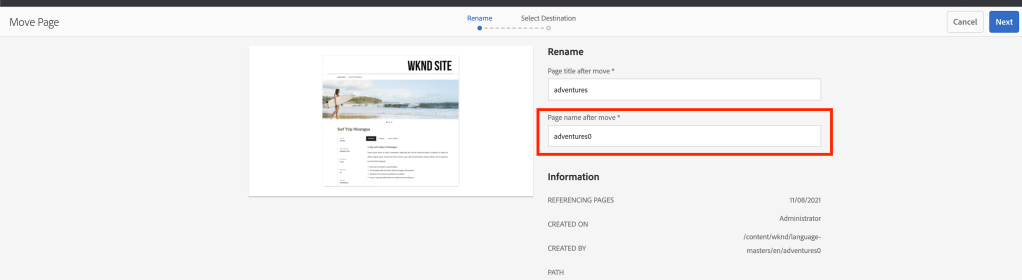
Finally, click on manage publication to publish the new adventures page and select all child pages to reactivate.

Let’s try to solve the above issue programmatically:
MCP (Manage Controlled Processes) is both a dashboard for performing complex tasks and a rich API for defining these tasks as process definitions. In addition to kicking off new processes, users can also monitor running tasks, retrieve information about completed tasks, halt work, and so on.
Add the following maven dependency to your pom to extend MCP
<dependency>
    <groupId>com.adobe.acs</groupId>
    <artifactId>acs-aem-commons-bundle</artifactId>
    <version>5.0.4</version>
    <scope>provided</scope>
</dependency>
Create a new MCP process called TemplateTypeUpdaterFactory service class as shown below:
package com.mysite.mcp.process;

import org.osgi.service.component.annotations.Component;
import com.adobe.acs.commons.mcp.ProcessDefinitionFactory;

@Component(service = ProcessDefinitionFactory.class, immediate = true)
public class TemplateTypeUpdaterFactory extends ProcessDefinitionFactory<TemplateTypeUpdator> {
	@Override
	public String getName() {
		return "Template Type Updater";
	}
	@Override
	protected TemplateTypeUpdator createProcessDefinitionInstance() {
		return new TemplateTypeUpdator();
	}
}
Create TemplateTypeUpdator Implementation class as shown below:
package com.mysite.mcp.process;

import java.io.IOException;
import java.text.MessageFormat;
import java.util.ArrayList;
import java.util.Collections;
import java.util.EnumMap;
import java.util.HashMap;
import java.util.List;
import java.util.Map;
import javax.jcr.Node;
import javax.jcr.RepositoryException;
import org.apache.sling.api.request.RequestParameter;
import org.apache.sling.api.resource.LoginException;
import org.apache.sling.api.resource.PersistenceException;
import org.apache.sling.api.resource.ResourceResolver;
import org.slf4j.Logger;
import org.slf4j.LoggerFactory;

import com.adobe.acs.commons.data.Spreadsheet;
import com.adobe.acs.commons.fam.ActionManager;
import com.adobe.acs.commons.mcp.ProcessDefinition;
import com.adobe.acs.commons.mcp.ProcessInstance;
import com.adobe.acs.commons.mcp.form.Description;
import com.adobe.acs.commons.mcp.form.FileUploadComponent;
import com.adobe.acs.commons.mcp.form.FormField;
import com.adobe.acs.commons.mcp.model.GenericReport;
import com.day.cq.commons.jcr.JcrConstants;
import com.day.cq.commons.jcr.JcrUtil;
import com.day.cq.wcm.api.Page;
import com.day.cq.wcm.api.PageManager;
import com.day.cq.wcm.api.WCMException;

public class TemplateTypeUpdator extends ProcessDefinition {

	private static final Logger LOGGER = LoggerFactory.getLogger(TemplateTypeUpdator.class);
	private static final String REPORT_NAME = "Page-Template-Updated";
	private static final String EXECUTING_KEYWORD = "Performs Page Template change";
	private static final String SLASH = "/";
	private static final String REPORT_SAVE_PATH = "/jcr:content/report";
	private static final String DESTINATION_COL = "duplicatepage";
	private static final String SOURCE_COL = "originalpage";
	final Map<String, String> channelPaths = Collections.synchronizedMap(new HashMap<>());
	private final List<EnumMap<ReportColumns, Object>> reportRows = new ArrayList<>();
	GenericReport genericReport = new GenericReport();

	@FormField(name = "Template Update", description = "Excel spreadsheet for performing channel type updator", component = FileUploadComponent.class, required = false)
	private RequestParameter sourceFile;

	@Override
	public void buildProcess(ProcessInstance instance, ResourceResolver rr) throws LoginException, RepositoryException {
		validateInputs();
		genericReport.setName(REPORT_NAME);
		String desc = EXECUTING_KEYWORD;
		instance.defineCriticalAction("Updating Page", rr, this::createOrUpdatePage);
		instance.getInfo().setDescription(desc);
	}

	protected void createOrUpdatePage(ActionManager manager) {
		manager.deferredWithResolver(resourceResolver -> {
			try {
				for (Map.Entry<String, String> entry : channelPaths.entrySet()) {
					final PageManager pageManager = resourceResolver.adaptTo(PageManager.class);
					Page destinationPage = resourceResolver.resolve(entry.getValue()).adaptTo(Page.class);
					Page sourcePage = resourceResolver.resolve(entry.getKey()).adaptTo(Page.class);
					pageManager.delete(sourcePage, true, false);
					JcrUtil.copy(resourceResolver.resolve(destinationPage.getPath() + SLASH + JcrConstants.JCR_CONTENT)
							.adaptTo(Node.class), sourcePage.adaptTo(Node.class), null);
					pageManager.delete(destinationPage, false, false);
					recordData(entry.getKey());
				}
				if (resourceResolver.hasChanges()) {
					resourceResolver.commit();
				}
			} catch (WCMException | RepositoryException e) {
				LOGGER.error("unable to create or update page {}", e.getMessage());
			}
		});
	}

	protected void recordData(String channelPagePath) {
		final EnumMap<ReportColumns, Object> row = new EnumMap<>(ReportColumns.class);
		row.put(ReportColumns.SERIAL, 1);
		row.put(ReportColumns.CONTENT_PATH, channelPagePath);
		reportRows.add(row);
	}

	private void validateInputs() throws RepositoryException {
		if (sourceFile != null && sourceFile.getSize() > 0) {
			Spreadsheet sheet;
			try {
				sheet = new Spreadsheet(sourceFile, SOURCE_COL, DESTINATION_COL).buildSpreadsheet();
			} catch (IOException ex) {
				throw new RepositoryException("Unable to parse spreadsheet", ex);
			}

			if (!sheet.getHeaderRow().contains(SOURCE_COL) || !sheet.getHeaderRow().contains(DESTINATION_COL)) {
				throw new RepositoryException(
						MessageFormat.format("Spreadsheet should have two columns, respectively named {0} and {1}",
								SOURCE_COL, DESTINATION_COL));
			}

			sheet.getDataRowsAsCompositeVariants().forEach(
					row -> channelPaths.put(row.get(SOURCE_COL).toString(), row.get(DESTINATION_COL).toString()));
		}
	}

	@Override
	public void storeReport(ProcessInstance instance, ResourceResolver rr)
			throws RepositoryException, PersistenceException {
		genericReport.setRows(reportRows, ReportColumns.class);
		genericReport.persist(rr, instance.getPath() + REPORT_SAVE_PATH);
	}

	@Override
	public void init() throws RepositoryException {
	}

	enum TemplateType {
		HOME_PAGE_TEMPLATE, EXPLORATORY_TOPIC_TEMPLATE, EXPLORATORY_TOOL_TEMPLATE, PROBLEM_SOLVING_TOPIC_TEMPLATE
	}

	public enum ReportColumns {
		SERIAL, CONTENT_PATH
	}

	public enum PublishMethod {
		@Description("Select this option to generate Generate Article Pages")
		CHANNEL_PAGES
	}
}
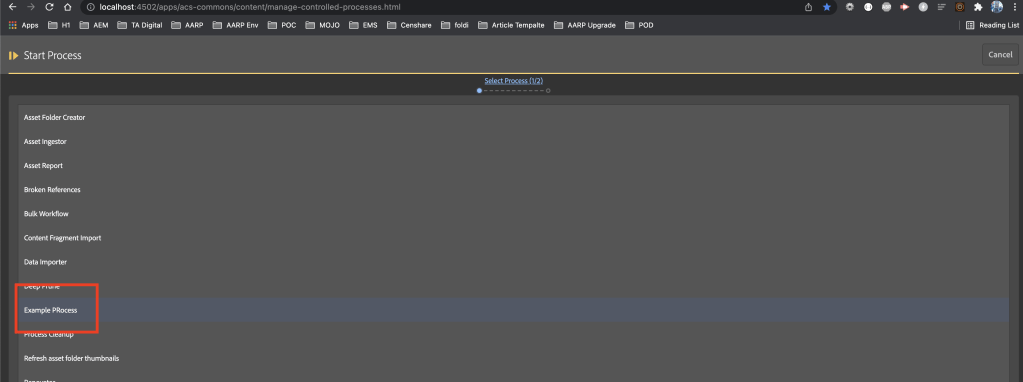
Once the code is deployed, please go to the following URL and click on start process as shown below:
http://{domain}/apps/acs-commons/content/manage-controlled-processes.html

Create a new adventures page under any path using the adventure page template.
Create an Excel sheet with the following columns:
- Duplicatepage column – new adventures path
- Originalpage column – exiting adventures Page path

Upload this Excel sheet as input into the new process as shown below:


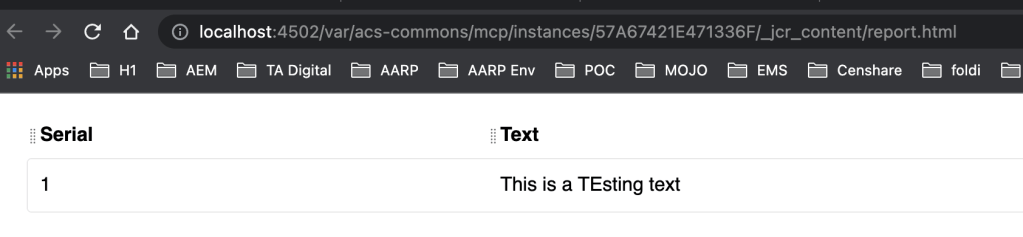
Once the process starts it will update the existing page template with a new template and it will delete the duplicate page
Once the update is completed you can use quick publish the updated adventures page.
You can also use the same process to update single or multiple pages at once by adding multiple rows to the Excel sheet.



 AEM best practices and development guide