Get a List of all the Assets which are missing references
Requirement:
Get the list of broken asset references to unpublish and remove them repo to improve the system stability and performance.
Introduction:
How do assets get published?
The author uploads the images and publishes the assets
Create a launcher and workflow which process assets metadata and publish the pages
Whenever we publish any pages and if the page has references to assets, then during publishing, it asks to replicate the references as well.
What happens when the page is unpublished?
When the page is deactivated, assets referenced to the page will not be deactivated because this asset might have reference to the other pages hence out of the box assets won’t be deactivated.
If we perform cleanup, deactivate and delete old pages, we might not be cleaning up assets related to this page.
Advantages of cleaning up old assets?
Drastically reduces repository size
Improves DAM Asset search
Improves indexing
Get Publish Report using Assets Report:
Go to Tools -> Assets -> Reports as shown below:
Asset Reports
Click on create and click on Publish report
Select Publish report
Provide folder path and start date and end date
Add Report details
Select the columns as per requirement
Configure columns for the report
Finally, report will be ready with all the assets lists as shown below
Completed Reports
Download the report to see the final list of images
Example Report CSV file
If Images are unpublished then we can ask authors to review and delete them
If images are published but has no references to figure this out, we need a new process.
MCP (Manage Controlled Processes) is both a dashboard for performing complex tasks and a rich API for defining these tasks as process definitions. In addition to kicking off new processes, users can also monitor running tasks, retrieve information about completed tasks, halt work, and so on.
Add the following maven dependency to your pom to extend MCP
After building the code you can see the new Process showing up in MCP
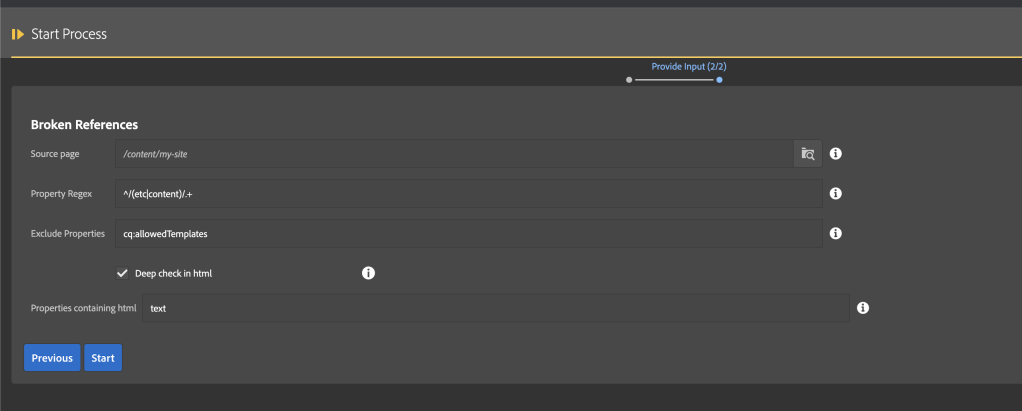
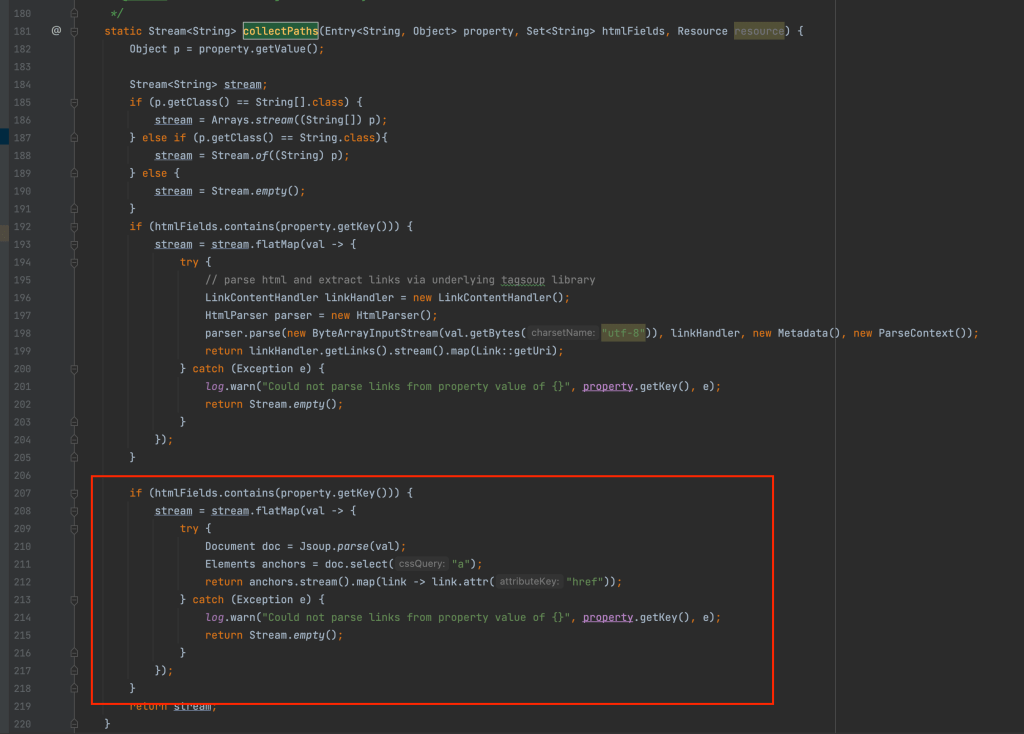
Borken Asset Refernce Process
Copy the Path column into the new Excel sheet as shown below
Path column into new excel file
Upload into the process and start to see all the images which are published yet unreferenced as shown below
Why does Chunk count?
Chunk count helps the SQL 2 query to group by the paths, which will be maxing 4500 and it won’t take more than that (configurable based on the environment). However basically, if we have 20000 / 4500 = 4.44 ~ 5 we will be running the query max five times to generate the below report
Share the report with the content authors team to validate if images are required if not plan to clean up using
After completing the processExample report and we can download and share with Authors
Clean up Process:
Authors don’t have to unpublish and delete individual images, then can you use the below process to upload the excel sheet with all the approved image paths and upload it to the process to deactivate and delete
How to clean up the growing repo? How to safely delete all the unwanted assets and pages.
Requirement:
Find the references of all the assets and pages and clean up unreferenced assets and unwanted pages.
Introduction:
You can call the below process as asset, pages references report.
Usually, with growing repo size, we usually do logs rotation and archiving, we also do some compactions (Revision cleanup).
What if we could remove some of the deactivated and unreferenced assets or pages?
How to find references of assets or pages?
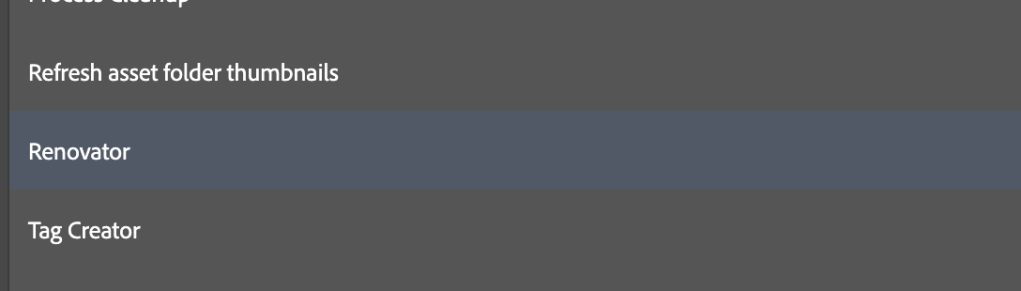
Go to the following url https://{domain}/apps/acs-commons/content/manage-controlled-processes.html and click on Start Process and select Renovator process as shown below:
Start ProcessRenovator Process
I am trying to check the references of all the assets under the following path:
Source path: /content/dam/wknd/en/activities
And select some random path into the Destination path: /content/dam/wknd/en/magazine
And please do make sure to check the Dry run and Detailed Report checkboxes, if not checked all the assets will be moved to the new folder i.e, /content/dam/wknd/en/magazine
Process fields selections
Once you start the process you would see the process take some time to run and you can click on the process and open the view or download the excel report as shown:
Process result pageView the results popup
Once downloaded delete the following columns:
Remove unwanted columns
You can see some of the rows have empty references and if you think these assets are no more required then you can remove them
Unreferenced rows
How to remove the unreferenced assets or pages safely?
You can run through the above steps on any of the folders and please make sure to avoid running on root folders or pages like: /content/dam or /content or home pages because would slow down the servers
For more information on how to use the renovator process for
AEM doesn’t support the move option for bulk selection of pages. Hence, there is a need to find a way to bulk move pages from one location to another location and update their references.
Requirement:
This article discusses the problem of bulk moving pages from one location to another location in Adobe Experience Manager (AEM) and introduces the MCP Renovator process as a solution. It also provides step-by-step instructions on how to use an Excel sheet and the Renovator process to move pages, update references, deactivate and delete moved pages, and publish moved references and pages.
Bulk move some of the pages from one location to another location
Update the references on the page.
Deactivate moved pages and delete
Publish moved references
Publish moved pages
Introduction:
Out of the box, AEM doesn’t support the move option/operation for more than one selection of pages. However, we can use the MCP renovator process to bulk move the existing pages from one location to another location.
Create an Excel sheet containing the following columns:
Source – source path of the page
Destination – destination path and if you want to rename the page you do as well
In the above example, the magazine page will be renamed to revenue
Go to the MCP process path http://{domain}}/apps/acs-commons/content/manage-controlled-processes.html, select Renovator process upload the Excel sheet and use the following options as per your needs. If you select replication MCP queue will activate only references but won’t activate the moved pages.
Renovator process
Dry run the process to validate for any errors in the Excel sheet and select the detailed report to view complete move-related changes.
Renovator satisfy all 5 requirements but for the 6th requirement, you can use the below process to activate all the moved pages and you upload the same excel sheet and below process will only look into the destination column AEM Publish / UnPublish / Delete List of pages – MCP Process












 AEM best practices and development guide